
Let’s take a look at the updates we have prepared for you in the mobile waiter. You can find more information about how the 3-in-1 device works here.
At first glance, you will certainly notice the new colour design. We hope you will like it. Now let’s move on to the changes themselves.
1. Automatic logout
You can now set a time interval in Vento after which the user will be automatically logged out of the mobile waiter in case of inactivity.
You can find the setting via ePOS – Terminals – terminal detail:
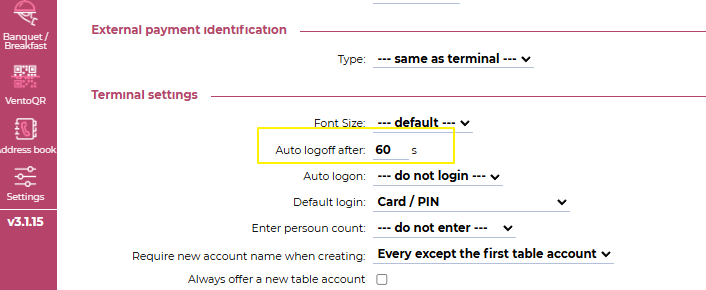
If you lock the 3-in-1 device using the side button and then activate it again, you will now only be logged out if the set interval has been exceeded. If no interval is set, the waiter will remain logged in after locking and unlocking the terminal.
2. Simplified payments
You can adjust the entire payment process according to your needs. You now have the option to decide which steps will be skipped during payment and which will remain.
Again, go to ePOS – Terminals – terminal detail. In the Terminal settings section, you will find several new options:
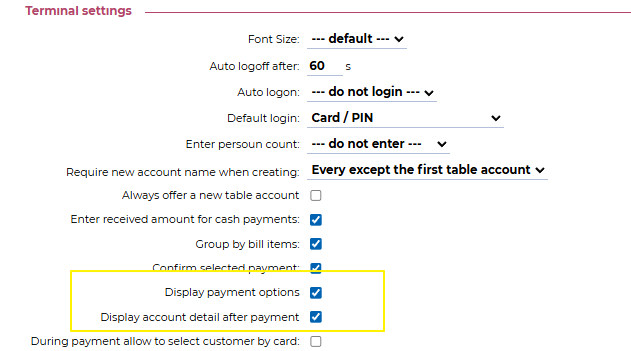
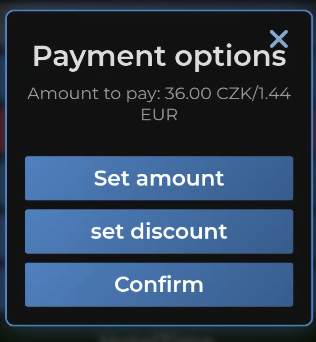
Display payment options
If you untick this field in the terminal settings, the following window will no longer be displayed during payment:
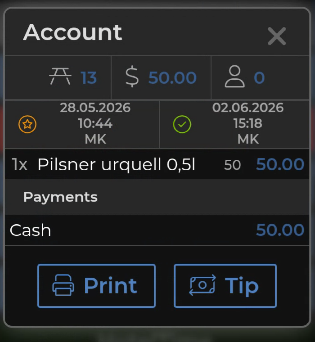
Display account detail after payment
After unticking this option, the bill detail window will no longer be displayed:
Automatically print the number of receipts according to your settings
The mobile waiter now prints the number of receipts that corresponds to your Vento settings. For example, if you have set 1 receipt to be printed for the Cash payment type, 1 receipt will be printed automatically when paying by Cash via the 3-in-1 device.
This means that the window asking for the number of receipts to print will no longer be displayed. It will only appear if your system is configured that way. Our customer support team will be happy to help you with the settings if needed.
Improved order confirmation
We have adjusted the confirmation of successful order sending. You will now find it in the top-right corner. The confirmation no longer needs to be clicked; it will disappear after a few seconds:
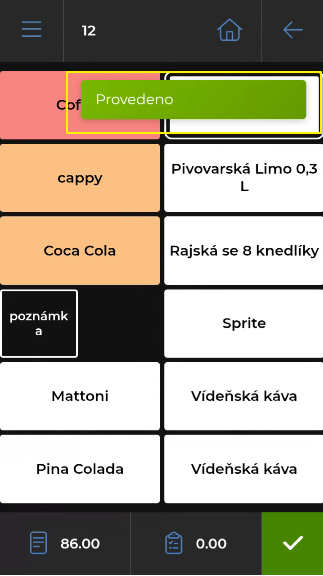
If you need to continue with another order and the confirmation is in your way, simply click it and it will disappear immediately.
3. Selecting payment types for the 3-in-1 device
You can now set in Vento which payment types will be offered in the mobile waiter. So if Cash, card payment and hotel account payment are enough for you, the other payment types will no longer get in your way.
Simply go in Vento to Settings – Payment type – detail and untick the mobile waiter field:
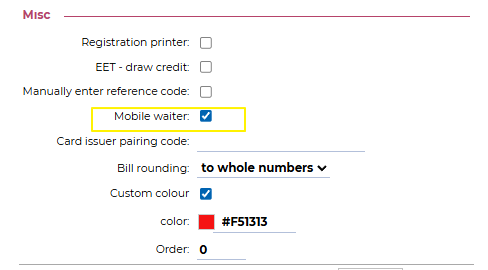
By ticking the Custom colour field, you can also choose a specific colour for any payment type used in the mobile waiter.
4. Item grouping
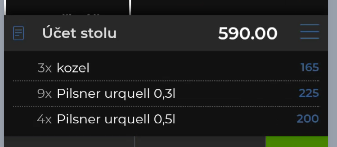
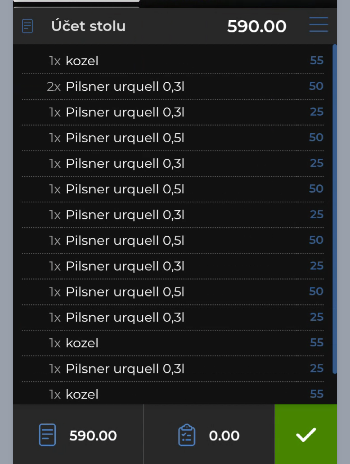
If the Group by bill items option is active in the terminal settings, items will now also be merged in the mobile waiter:
With active setting:
Without active setting:
5. HotelTime payments:
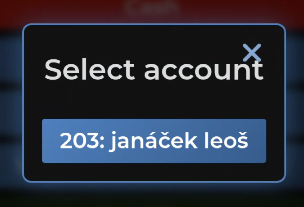
We have made adjustments to payments to hotel accounts. If there are fewer than 8 open accounts, all accounts will be displayed:
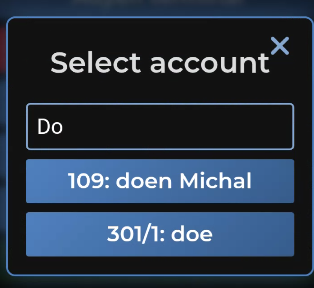
If there are more accounts, you need to enter at least part of the room number, guest name or account name:
6. Account split
When moving/paying all account items during bill splitting, we will display an information message:
Original account contains no items. Do you want to cancel the bill?