
Do your hotel guests keep coming back, but you do not have a clear overview of who they are or how often they return? Or are you managing loyalty somehow manually in external applications?
Then this is for you.
With the Loyalty module in HotelTime, you get a simple tool for managing guest loyalty directly in the PMS – without spreadsheets, without chaos and without unnecessary work.
Contents
- How does it work?
- Loyalty across HotelTime
- How to activate the service?
- How to configure the module?
- Setup when using an external Loyalty system
How does it work? |
HotelTime Loyalty allows you to manage data about your loyal guests and companies simply and efficiently. Thanks to flexible configuration options, you can define:
1. Loyalty type
- Based on the number of nights stayed
- 1 night = 1 point
- Based on the number of stays
- 1 stay = 1 point
- Based on revenue
- 1 unit of currency = 1 point
- the currency can be set as either the hotel's primary or secondary currency, and revenue is converted accordingly
A combination of nights/stays and revenue is not possible.
- External system
- used when HotelTime is connected to an external Loyalty system
2. Loyalty levels
- Custom membership levels and their thresholds
3. Conditions for guests and/or companies
- The guest or company must be the reservation owner
- The guest must be the staying guest
- Both
If both options are selected, companies receive points if they are the reservation owner, while guests receive points if they are the reservation owner and/or the staying guest.
If the same person is both the reservation owner and the staying guest, points are only awarded once.
4. Point sources
- For Loyalty types based on the number of nights or stays:
- Rate Codes from which points are calculated
- For revenue-based Loyalty:
- Rate Codes from which points are calculated, and
- accoumt centres from which points are calculated
Tip: If you use HotelTime Online Check-in, guests can join the Loyalty programme themselves online while entering their personal details.
5. User rights
Loyalty settings and Loyalty information in profiles can only be edited by users with the appropriate permissions.
The following permissions are required to configure the Loyalty programme:
- Loyalty
- Loyalty - new, edit
- Loyalty overview
- Loyalty Revenue centres / RateCodes settings
The following permission is required to manage Loyalty information in Address Book profiles:
- Profile partner > Edit loyalty
Loyalty across HotelTime |
In HotelTime PMS, Loyalty information is displayed in all relevant areas and operational reports.
1. Address Book
In the Address Book list, you can filter profiles by a specific membership level using the Loyalty drop-down menu.
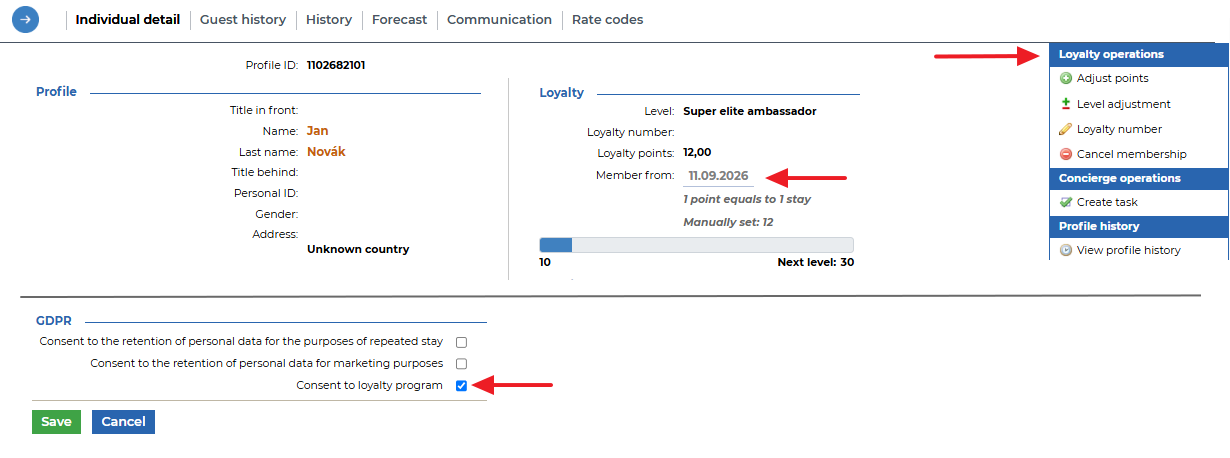
You can activate Loyalty for an Address Book profile by selecting the "Loyalty consent" checkbox. A Loyalty section and an extended management menu will then appear in the profile, where you can:
- Adjust points – manually increase the number of points for a guest/company, for example as compensation or an extra bonus
- Change level – assign the guest/company to a different level than the one currently assigned
- Enter Loyalty number – if you assign Loyalty cards or your own IDs to guests/companies
- Terminate membership – removes all Loyalty data associated with the profile
You can also set the membership start date in the profile. It is automatically populated with the current date when Loyalty consent is selected. The date can also be set retrospectively, for example if you are newly introducing Loyalty in HotelTime but already have existing members recorded in another system.
2. Room Arrivals, Guest Arrivals, Room Departures
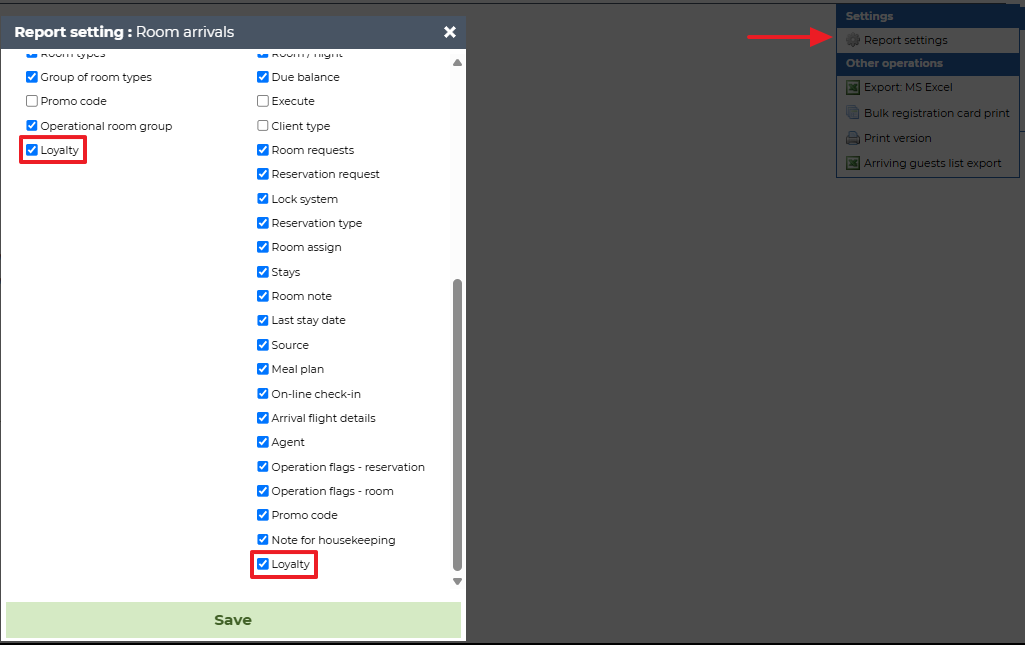
In standard front-desk reports, you first need to enable the Loyalty filter and column via Report Settings in the upper-right menu.
Membership information will then be displayed directly in the report, allowing you, for example, to easily filter only arrivals of Loyalty guests.
Each user configures this setting individually.
3. Reservation Detail, Room Detail – Reservation Owner, Staying Guest and Pop-up Note
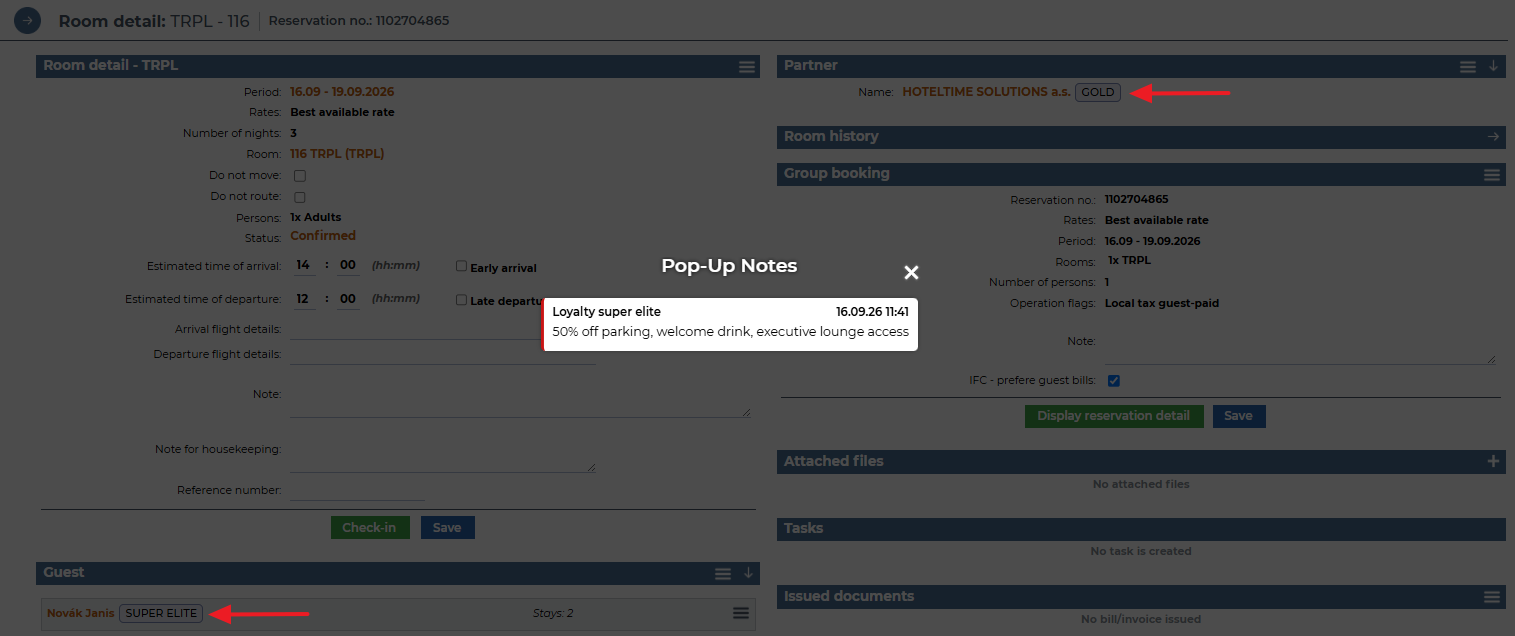
In the example below, the pop-up note is configured to appear when the staying guest belongs to the SUPER ELITE category.
4. Loyalty Report
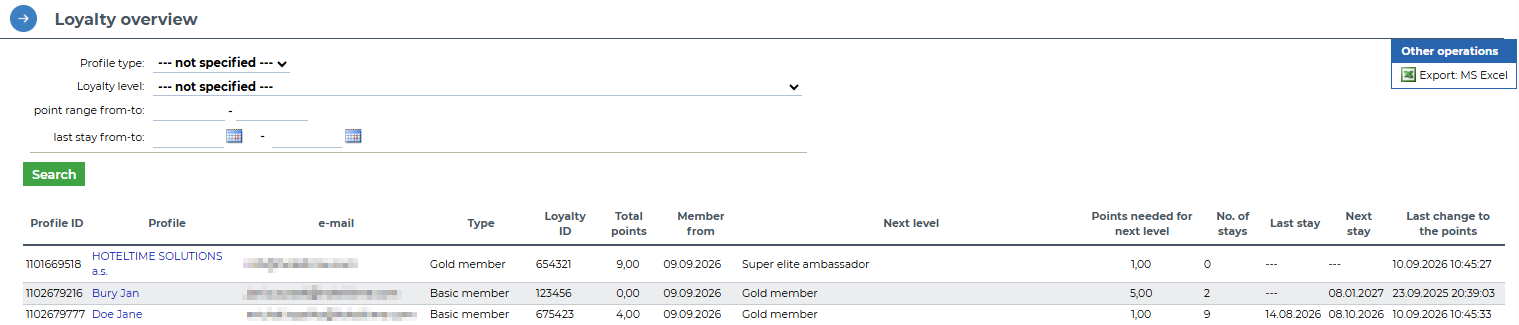
Under Profiles > Loyalty Overview, you will find a clear report of your active Loyalty guests and companies.
You can apply filters as needed or export the report to Excel.
5. Hotel Chains
If you operate multiple hotels within one hotel chain, the configured Loyalty categories are automatically applied across all hotels.
However, you can define the point sources separately for each hotel. This means that each property can use different Rate Codes or grids, allowing you to tailor the Loyalty programme to the specific needs of each hotel.
Guests then collect points across the entire hotel chain within a single Loyalty profile.
How to activate the service? |
Contact HotelTime support and within a few days you can start collecting data about your loyal guests.
How to configure the module? |
1. Admin settings – handled by us
HotelTime Support will activate the Loyalty module for you.
For Loyalty types based on nights, stays or revenue, Support will ask you for the date from which historical data should be calculated and added to guest and/or company profiles. This date can be anywhere between the date you started using the application and the current date.
If you use our standard registration card, Customer Support will upload an updated version to your application. If you use your own template, we recommend adding an option allowing guests to provide consent to join the Loyalty programme by selecting a checkbox.
2. User settings – handled by you
Are you setting up a Loyalty programme at your hotel for the first time?
We have prepared several practical tips to help you configure, evaluate and calibrate your programme correctly. You can find more information in this article.
If you use an external Loyalty system and its data is only synchronised to HotelTime, skip directly to the “Configuration when using an external Loyalty system” section below.
To manage Loyalty in HotelTime:
a. Set the Loyalty type and source under Settings > Classification management > Loyalty
The configuration window shown below will appear automatically. Select:
- Type
- Nights
- Stays
- Revenue
- Source
- Booker
- Staying guest
- Booker and staying guest
- Currency – only for revenue-based Loyalty
- Hotel primary currency
- Hotel secondary currency
Warning: Changing the Loyalty type after the programme has been introduced will permanently delete all existing Loyalty data. If you decide to change the Loyalty type in the future, please contact Customer Support for assistance. They will then regenerate your historical data.
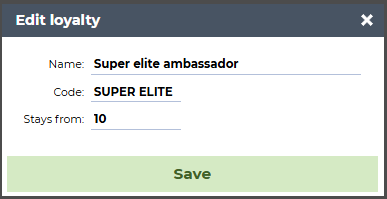
b. Create Loyalty categories by clicking New Item. For each level, enter:
- Name – full name of the category
- Code – abbreviation of the category name; displayed in reports and Room Detail
- Threshold – the number of room nights or amount of revenue from which the category becomes valid
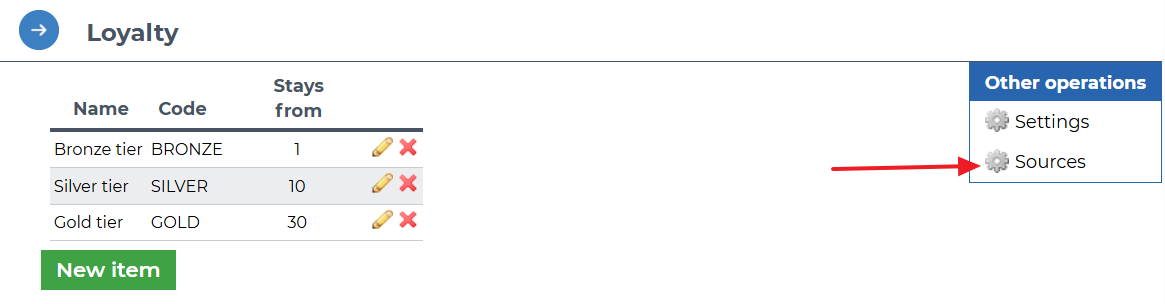
The upper limit of each level is determined by the next configured level. For example, if the Gold level starts at 30 nights, the upper limit of Silver membership is 30 nights and the profile changes to Gold upon reaching the 30th night. If there is no higher level configured, the highest configured level has no upper limit.
c. Configure Loyalty Sources by clicking Sources under Other Operations
- Source revenue centres – only for revenue-based Loyalty
- Source Rate Codes – for all Loyalty types
d. Configure global pop-up notes under Settings > Property > Pop-up Notes
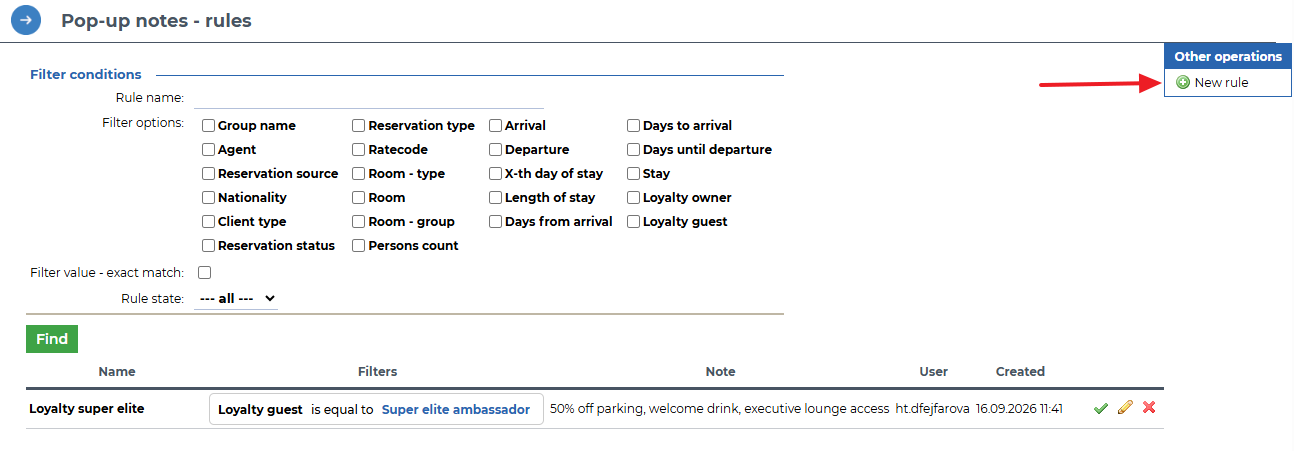
For reservations matching the configured criteria, an automatic alert will appear to notify the front desk about benefits associated with the guest's membership level.
e. Update the guest registration card
If you use your own registration card design, we recommend adding an option allowing guests to provide consent to join the Loyalty programme.
Our Customer Support team will be happy to assist you with updating your registration card.
f. Set Loyalty consent for already registered guests and companies
For guests and companies already registered in your Loyalty programme, you need to explicitly select the "Loyalty consent" checkbox in their profile details.
g. Specify the date from which data should be included in profiles
Provide Customer Support with the date from which you want historical data to be calculated and added to guest and company Loyalty profiles.
You can select any date in the past up to and including the current date.
Setup when using an external Loyalty system |
If you use an external Loyalty system integrated with HotelTime PMS, the configuration process is significantly shorter. You only need to:
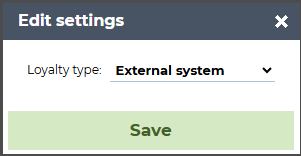
a. Set the Loyalty type under Settings > Classification management > Loyalty to External system
b. Create Loyalty categories by clicking New Item. For each level, enter:
- Name – full name of the category
- Code – abbreviation of the category name; displayed in reports and Room Detail
Warning: The Loyalty Code must match the code in the external system exactly, including uppercase and lowercase letters, diacritics and special characters.
c. Optional – configure global pop-up notes under Settings > Property > Pop-up Notes
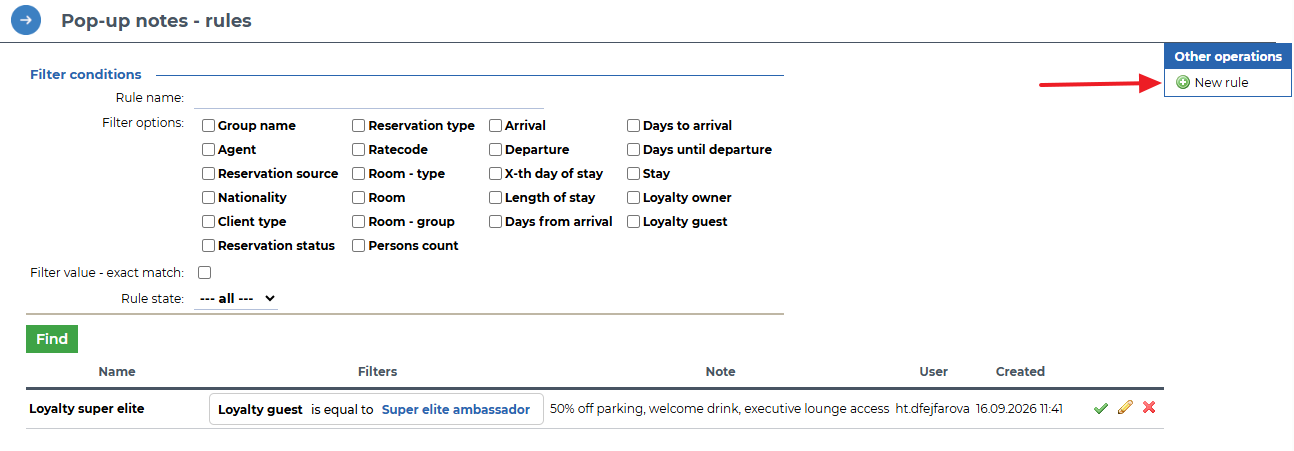
For reservations matching the configured criteria, an automatic alert will appear to notify the front desk about benefits associated with the guest's membership level.
d. Optional – update the guest registration card
If your external Loyalty system also allows guests to be added to the programme manually, we recommend adding an option to the registration card allowing guests to provide consent to join the Loyalty programme.
Our Customer Support team will be happy to assist you with updating the registration card.
And that's it! Everything is now configured and you can start rewarding your loyal guests.